A single actor renders your live Unreal scene to a Voxel VX2 or VX2-XL volumetric display in real time. Drop it in, frame your subject, press Play.
The VLED Unreal Plugin renders a live Unreal Engine 5.7 scene straight to a Voxel VX2 / VX2-XL volumetric display in real time. Drop a single actor into your level, position it over your subject, press Play, and your scene appears in the volume for an audience to walk around and explore from every angle. Drive it from Blueprint or C++, just like any other actor.
Every frame, the plugin renders your subject from six orthographic colour + depth cameras — one looking in at each face of a cube around it (±X, ±Y, ±Z). It packs colour and depth and compacts them into voxels on the GPU using compute shaders, then streams those voxels to the VX2 hardware over a background display thread. A LedWin simulator window opens alongside so you can orbit and zoom the volumetric output on screen.
Capture runs in Surface mode: exterior surfaces only, keeping Unreal's full lighting intact.
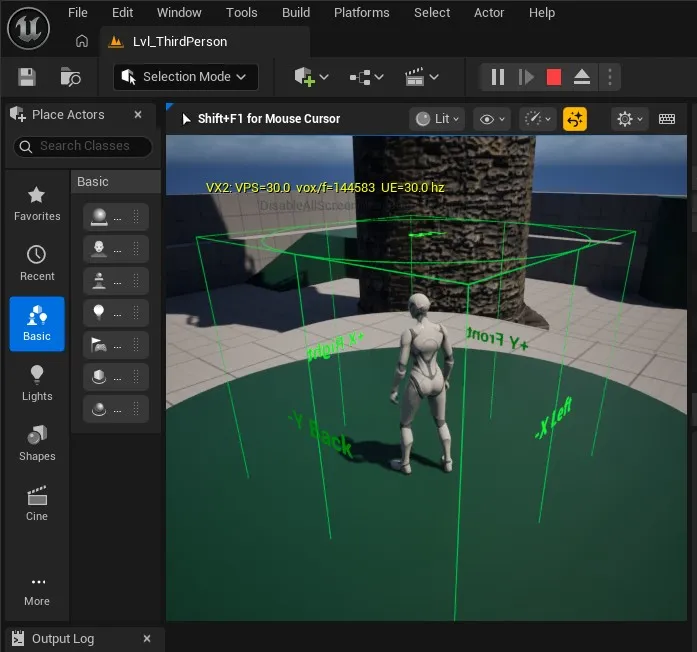
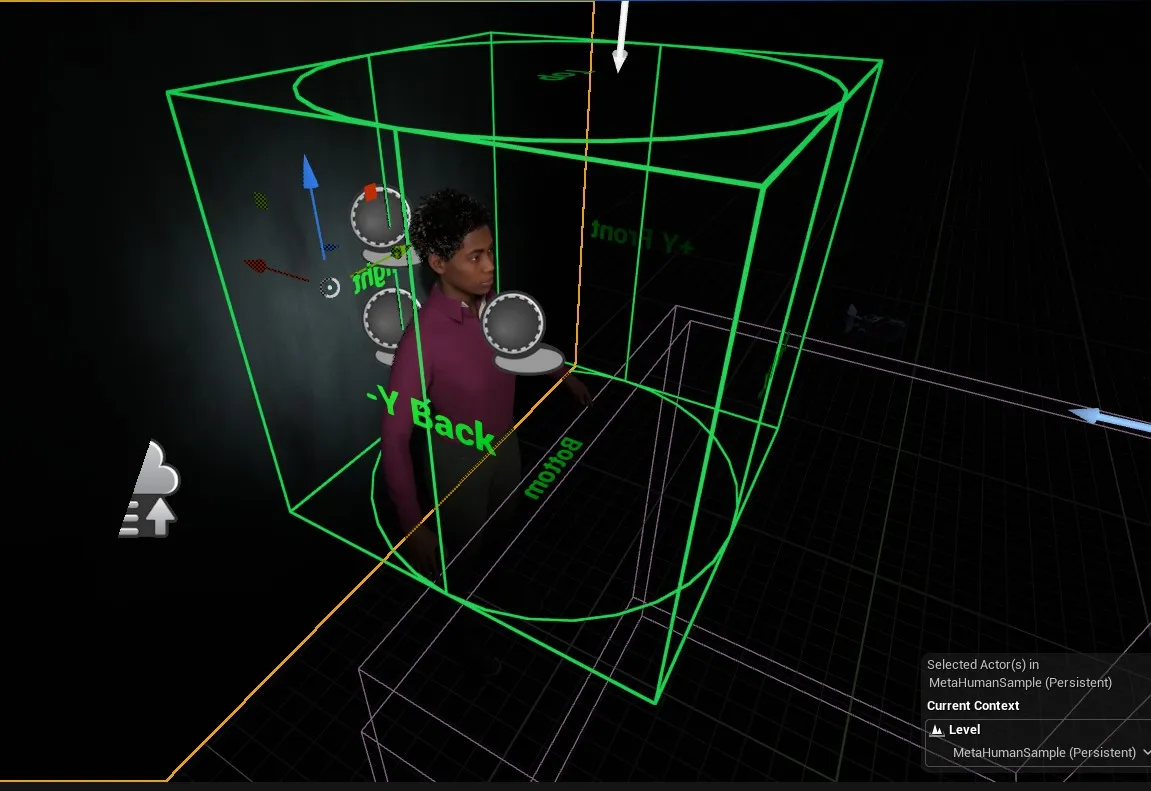
The capture region appears in the editor as a green wireframe box — the six camera faces — with an inscribed cylinder marking the actual volume the VX2 shows, and a text label on each face. Move and scale the actor to frame your subject, or set FollowTarget to track a pawn automatically.
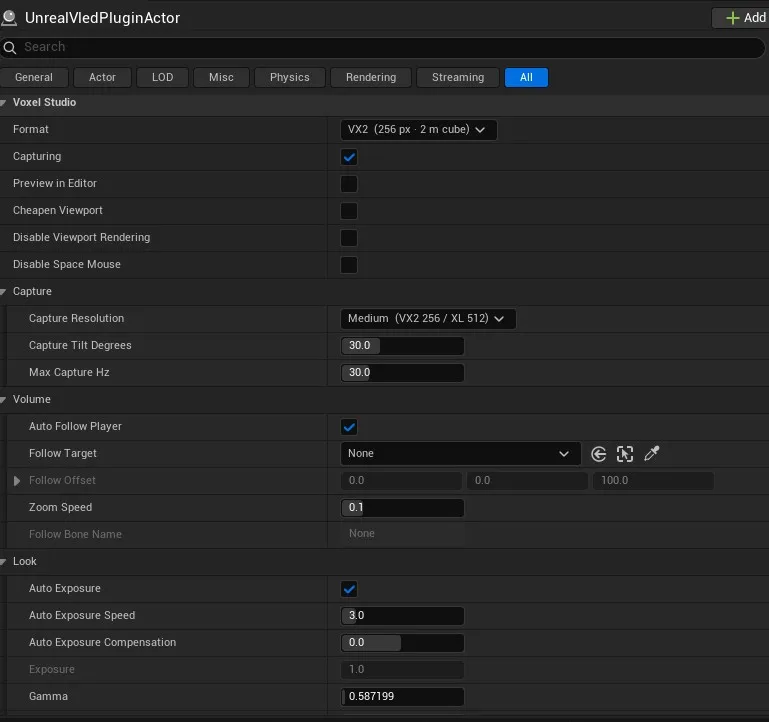
Every setting lives in the actor's Details panel and persists between sessions via Saved/VLEDConfig.json. Switch live between VX2 (2 m cube) and VX2-XL (4×2 m box), choose a capture resolution (Low / Medium / High), and set a voxel budget that thins the scene evenly when it's exceeded. Dial in gamma, sharpness, auto-exposure with manual EV compensation and optional boost duplicates, pick which of the six faces are active, and apply an anti-moiré rotation offset to break up grid patterns.
You'll need Windows and Unreal Engine 5.7 as a C++ project — the plugin ships native code — plus the Voxel runtime (ledhost.dll, LedWin.dll and ledhost.ini, typically under C:/VLED/System/Runtime). The runtime isn't bundled with the plugin; it's installed as part of the VLED environment, which the plugin then locates on your path automatically, so there's nothing to configure.
Copy the plugin into your project's Plugins/VLEDUnrealPlugin/ folder and let the editor rebuild it. In Place Actors, search VoxelStudio and drag an UnrealVledPluginActor into your scene. Frame your subject, and press Play — the feed starts and the simulator window opens.
For the full walkthrough — install, actor setup, controls, the complete settings reference and packaging — read the VLED Unreal Plugin User Guide.
Explore the VX2 and VX2-XL, try the live simulator, or talk to us about your use case.