Run your Unity application on a Voxel VX2 or VX2-XL volumetric display in real time — and keep the engine, the Asset Store and the community you already build with.
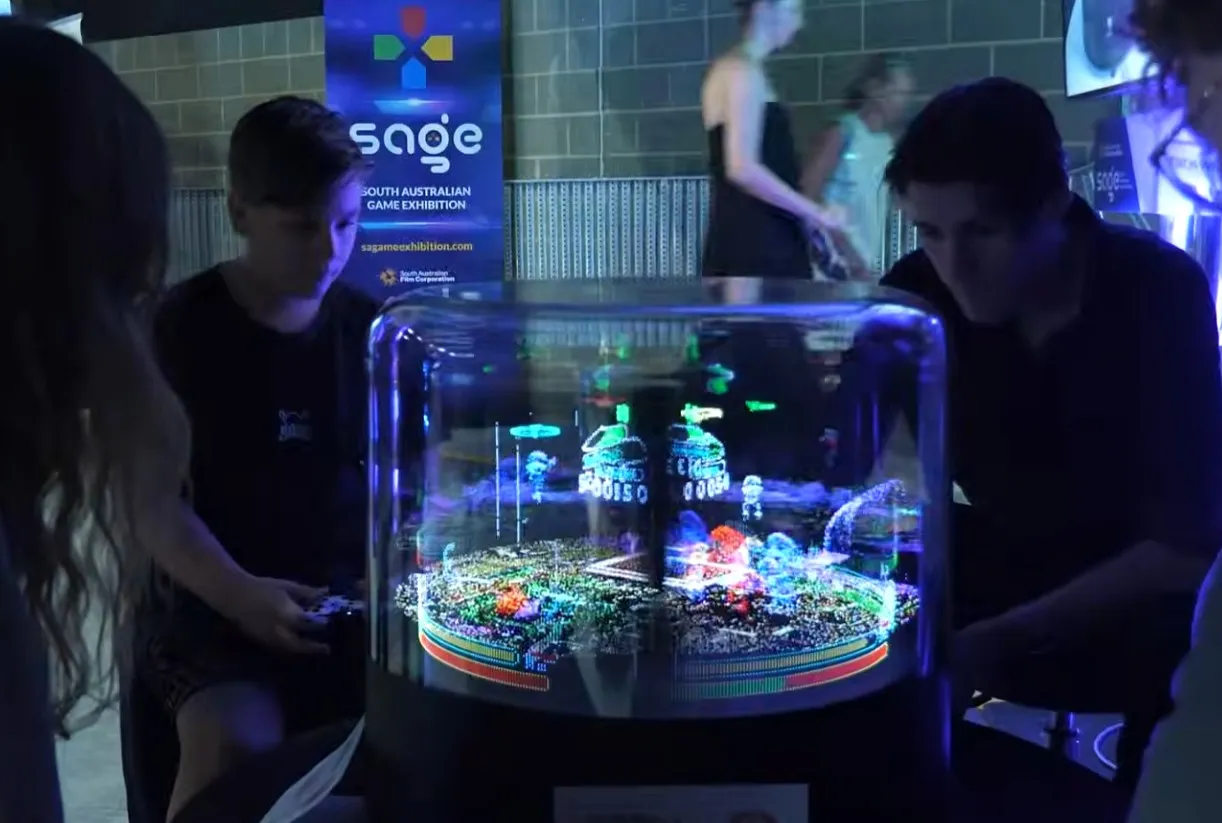
The Voxel Unity Plugin (VxU) makes it possible for Unity applications to run on the Voxel VLED display. You keep everything Unity gives you — the engine, the Asset Store and the community — while your scene plays back in the volume for an audience to walk around and explore from every angle. It's Windows-only and built for the Built-In Render Pipeline; we recommend the latest Unity 2022 release.
The plugin talks to the Voxel runtime through a C# bridge. A dedicated capture camera writes your scene's colour and depth to a hidden RenderTexture; the VxLitRenderer turns that into a point cloud and calculates effects like depth occlusion; and the VxCamera transforms the result into the display's voxel space and streams it to the hardware. Objects rendered with the Voxon/VxLitShader are the ones picked up for capture, supporting diffuse texture maps and colour tinting.
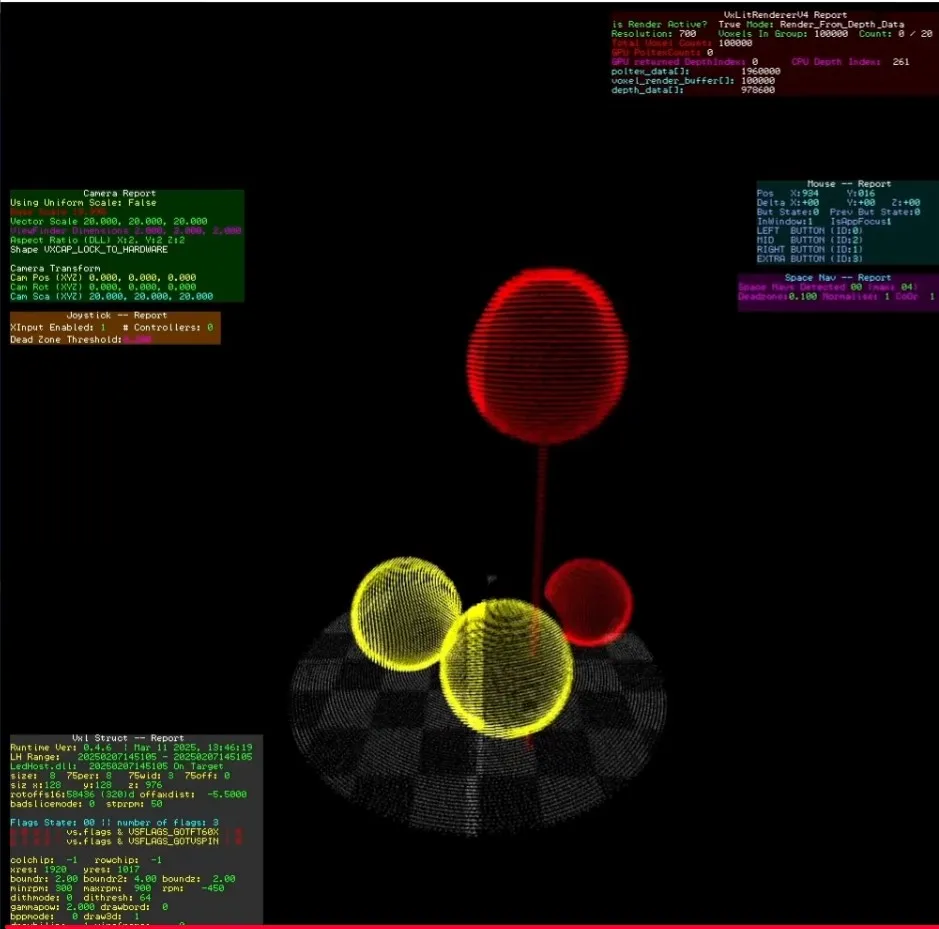
A LedWin simulator window lets you preview the volumetric output on screen, so you can develop without a VX2 attached to your PC.
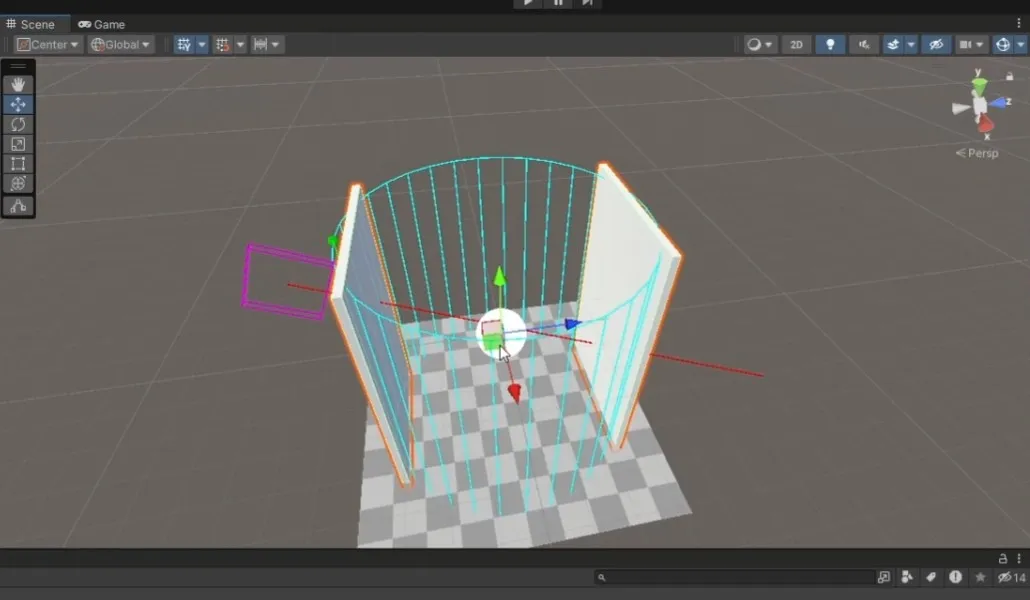
Add a VxCamera component to an empty GameObject to define the capture volume — set its viewfinder dimensions to 4,4,4 for a VX2 or 8,4,8 for a VX2-XL, and switch the shape to a cylinder to preview the capture area even without a display connected. Add your capture camera (orthographic, black background) with the VxLitRenderer and VxHardwareController components, give your objects the VxLitShader, and press Play to see the scene in the simulator. Global options live under the Voxel > Process menu.
Because a VxU app runs headless, Voxel's own input manager stands in for Unity's Input System, with support for keyboard, mouse, SpaceMouse and up to four joypads. For low-level control you can draw Voxel primitives — boxes, cubes, spheres, lines and text — straight to the volume from C# by implementing the IDrawable interface and calling VXProcess.Runtime draw functions.
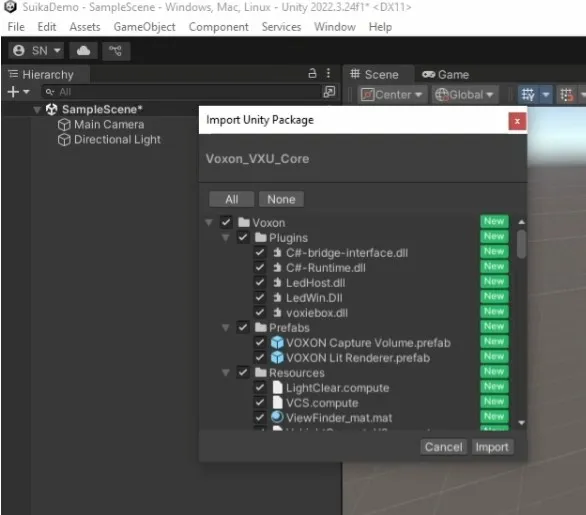
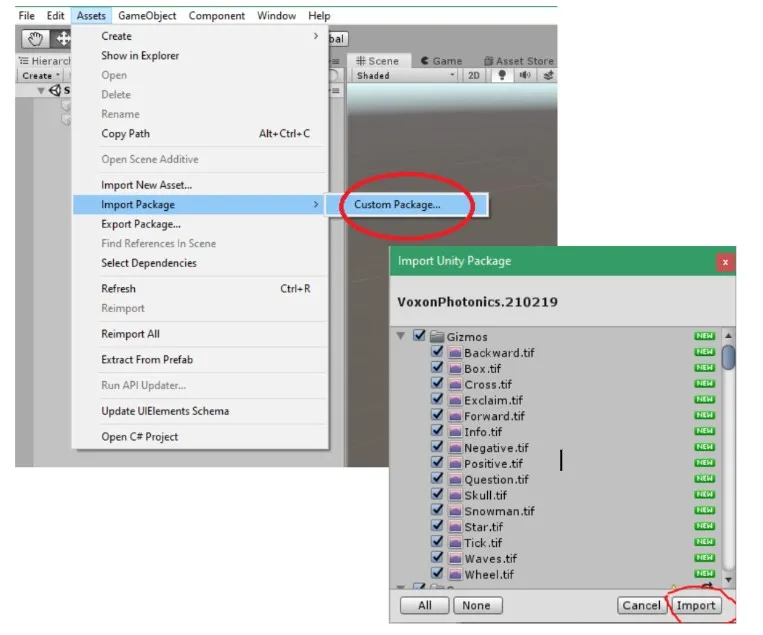
You'll need Windows, Unity (latest 2022 recommended) and the Voxel VLED Environment, which contains the VxU package — it isn't on the Asset Store. Import it via Assets > Import Package > Custom Package, and the environment sets up the runtime path for you, so there's nothing to configure. Building is almost identical to a standard Windows build; the plugin adds a VX.bat launcher that runs your app in efficient headless mode.
Performance is measured in Volumes Per Second (VPS). The VX2's volume is roughly 128 × 128, so lean into the low-resolution style, keep draw calls and texture sizes down, and your scenes will stay smooth and readable in the volume.
For the full walkthrough — scene setup, shaders, input, builds and scripting — read the Voxel Unity SDK Quickstart Guide.
Explore the VX2 and VX2-XL, try the live simulator, or talk to us about your use case.